
INFORMATION
TECHNOLOGY
Virtual Teammate PC Specifications

Operating System
Windows
WINDOWS 10/11 PRO 64bit
MAC
Mac OS 11 to latest version

CPU
Windows
Intel i310th gen, i5,i7,i9
AMD Ryzen 3,5,7,9
MAC
Intel i5,i7,i9
M1,M2,M3,M4 Chip

RAM
Windows
6,8,12,16,24,32 GB
MAC
6,8,12,16 GB

Storage
Windows
128,256,512,1tb HDD/SDD
MAC
128,256,512,1tb HDD/SDD
Internet Speed
Windows & MAC
30-500mbps Fiber
Back Up internet
Windows & MAC
25–100mbps Fiber/5G
Headset
Windows & MAC
Noise cancelling feature
Webcam
Windows & MAC
720-1080p resolution

client
Workday Tracker
At Virtual Teammate, we value transparency and productivity. Our Workday Tracker keeps you updated on active hours, tasks and efficiency — so you know how your Virtual Teammate is spending their time.
Workday Tracker Common Issues
WDT App stuck in asking authorization

When you open the WDT app and click Open authorization page, it will route you to a page on the Web

WDT Authorization Page
Once you see the authorization page and click the button Authorize it should say Device Authorized, if not then you are encountering an issue.
How to fix the issue

Completely Exit the app

Click Authorize on the Web
WDT should now be visible
Click on the Start button
Recorded time not reflecting properly in dashboard

Change timezone to US/Pacific
Please remember that the Workday Tracker app follows the US time zone
Timezone should be set to US/Pacific to properly reflect the time tracked by the WDT app.
Workday Tracker suddenly stop without user hitting the STOP button
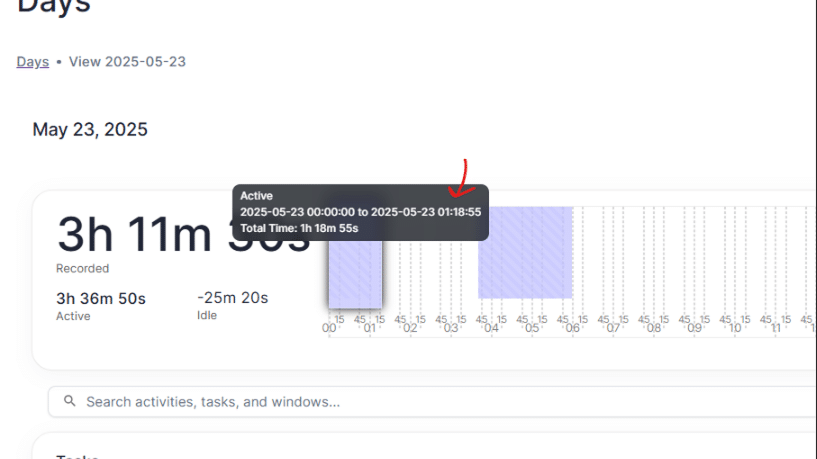
Please regularly check your Workday Tracker Dashboard to ensure that your time is being recorded properly.
As shown on the picture there was a time that the WDT app stop recording as it does not show any violet track on the graph.
For this instance, user should close the app completely and relogin to make sure the app will work properly.
Please report issue to AdminIT for further troubleshooting.
You can also check the SOP guidelines for any disputes in WDT app.